Difference between revisions of "Enterprise Web Server/Setup"
From Q-Better Knowledge Base
Paulo Santos (Talk | contribs) (Created page with "Enterprise Web Server installation looks like any other software installation. Double click the setup executable and start the wizard. link= [[File:Ews...") |
Paulo Santos (Talk | contribs) |
||
| (One intermediate revision by the same user not shown) | |||
| Line 1: | Line 1: | ||
Enterprise Web Server installation looks like any other software installation. Double click the setup executable and start the wizard. | Enterprise Web Server installation looks like any other software installation. Double click the setup executable and start the wizard. | ||
| − | [[File:Ews_inst1.png|link=]] | + | [[File:Ews_inst1.png|thumb|497px|none|link=]] |
| − | [[File:Ews_inst2.png|link=]] | + | |
| − | [[File:Ews_inst3.png|link=]] | + | |
| − | [[File:Ews_inst4.png|link=]] | + | Select a destination and a start menu folder. |
| − | [[File:Ews_inst5.png|link=]] | + | |
| + | [[File:Ews_inst2.png|thumb|497px|none|link=]] | ||
| + | [[File:Ews_inst3.png|thumb|497px|none|link=]] | ||
| + | |||
| + | |||
| + | Select additional options such as auto firewall configuration, start with Windows and whether or not the application should start as a service. The default values are the recommended values. | ||
| + | |||
| + | [[File:Ews_inst4.png|thumb|497px|none|link=]] | ||
| + | |||
| + | |||
| + | Wait for the installation to complete and the setup is done. | ||
| + | |||
| + | [[File:Ews_inst5.png|thumb|497px|none|link=]] | ||
Latest revision as of 12:21, 14 February 2013
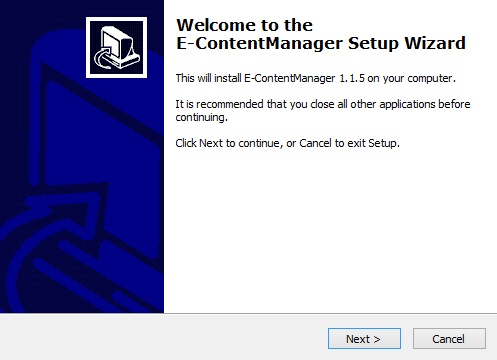
Enterprise Web Server installation looks like any other software installation. Double click the setup executable and start the wizard.

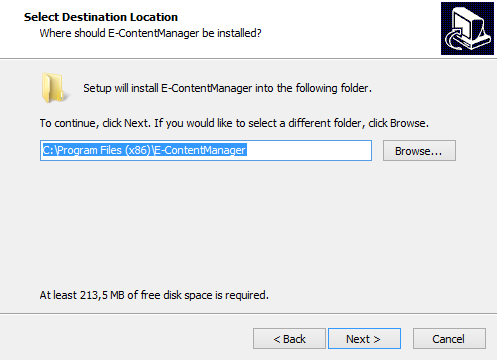
Select a destination and a start menu folder.


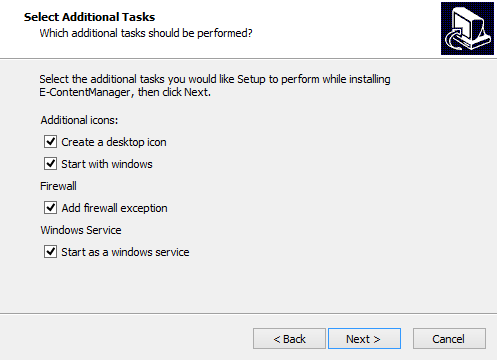
Select additional options such as auto firewall configuration, start with Windows and whether or not the application should start as a service. The default values are the recommended values.

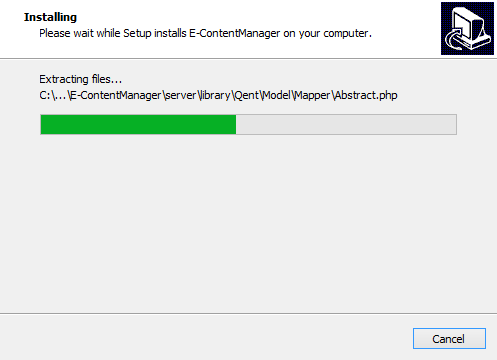
Wait for the installation to complete and the setup is done.